
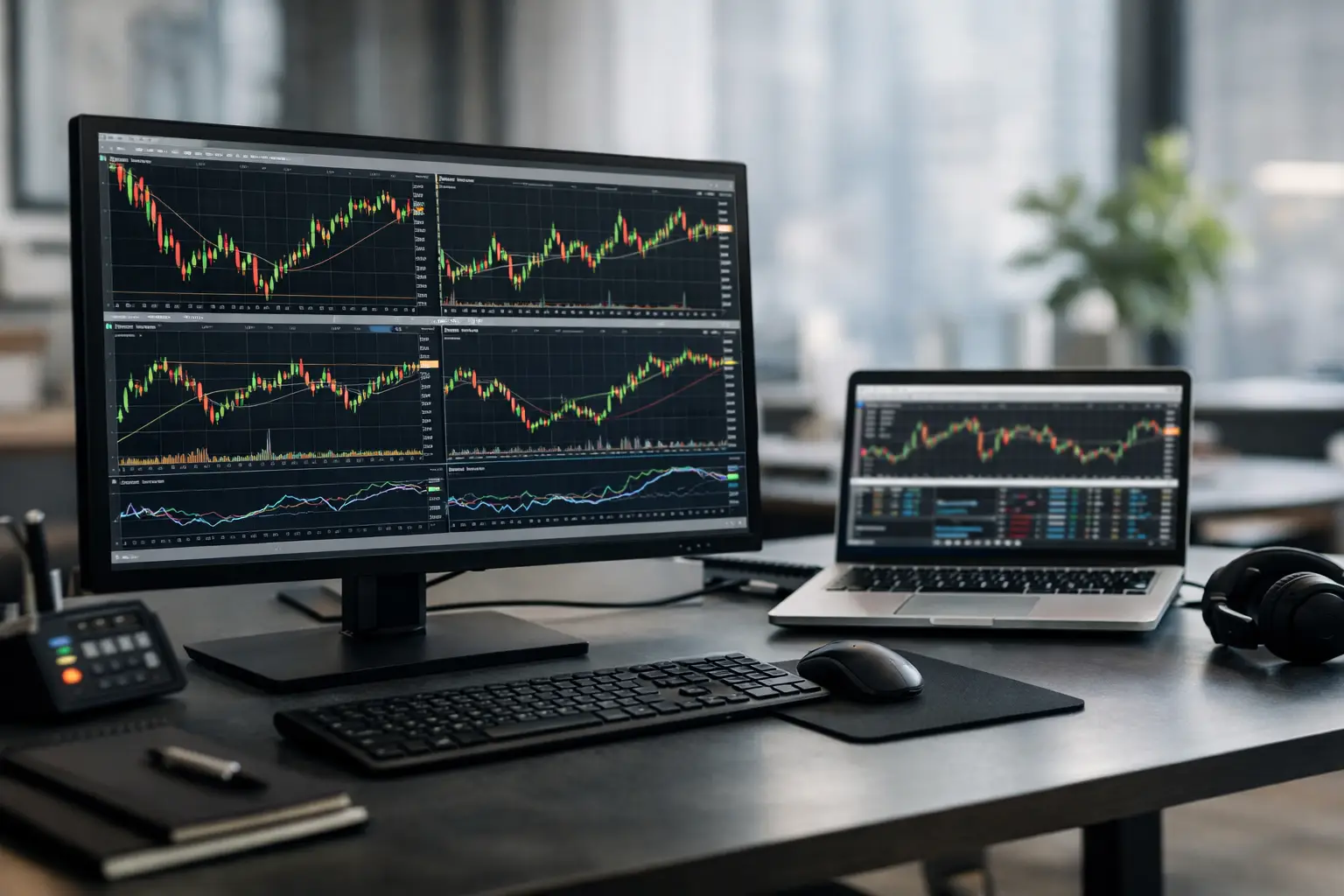
A trading platform should be ready before the market moves, not while you are trying to place your first order. This MT5 desktop setup guide walks through the decisions that matter: installing the correct terminal, connecting the right account, organizing your workspace, and building safeguards around every trade.
MetaTrader 5 is built for more than watching a price chart. On desktop, it gives traders access to advanced charting, depth of market where available, multiple order types, market analysis, and algorithmic trading tools from one workstation. The platform is powerful, but its defaults are not necessarily the right settings for your trading plan.
Start With the Right MT5 Desktop Installation
Download the MT5 desktop terminal only through your broker's secure client area or the official platform publisher. This reduces the risk of using an outdated installer, connecting to an incorrect server, or exposing account credentials to unofficial software.
Before installation, confirm that your computer has stable internet access and enough available memory to run the charts, indicators, and tools you intend to use. MT5 can operate on modest hardware, but traders who run several charts, custom indicators, or Expert Advisors will benefit from a current processor and sufficient RAM. Close unnecessary applications during active sessions if platform performance becomes inconsistent.
During installation, keep the default destination unless your computer has a specific storage policy. When the terminal opens, allow it to finish downloading its initial components and instrument data. Rushing this stage can create avoidable chart-loading or connection issues later.
Use the Correct Account Type and Server
The most common setup error is not a charting issue. It is signing in with the wrong account credentials or selecting the wrong trading server. A live account, a demo account, and an investor-password login may all use different access details.
In MT5, select File, then Login to Trade Account. Enter your login number, trading password, and the exact server provided in your account details. A successful connection should show data activity in the lower-right corner of the platform. If the connection status remains inactive, verify the server name character by character before resetting your password or reinstalling the terminal.
An investor password allows viewing access without trade permissions. It is useful when you need to share account visibility with a trusted party, but it should never replace proper account security. Keep your master password private and use a unique password that is not shared with email, banking, or social accounts.
Configure Your MT5 Desktop Workspace
A clean workspace protects attention. Too many charts, alerts, and indicators can make a platform look sophisticated while making decisions slower. Start with the instruments and timeframes that match your strategy.
Open Market Watch to view available symbols. Not every instrument is displayed by default, so right-click within the window and choose the option to show all symbols if needed. Then hide instruments you do not trade regularly. A focused watchlist makes it easier to spot movement in your selected forex pairs, metals, indices, commodities, cryptocurrencies, share CFDs, or futures.
For each instrument, review its specification before trading. Right-click the symbol and open its details to check contract size, minimum volume, volume increments, trading hours, swap conditions, and margin requirements. These factors affect position size and holding costs. A trade that looks small in lot terms can carry meaningful exposure when leverage is applied.
Build Charts for Decisions, Not Decoration
Open a chart by right-clicking an instrument in Market Watch and selecting Chart Window. Choose the timeframe that supports your process. A short-term trader may monitor one-minute through 15-minute charts, while a swing trader may use four-hour and daily charts to filter noise and define broader structure.
Use indicators sparingly. Moving averages, RSI, ATR, or volume tools can support a defined method, but stacking indicators that measure the same thing often creates false confidence. The objective is clarity: identify the market condition, entry trigger, invalidation level, and realistic target before an order is placed.
Once a chart layout works, save it as a template. Templates preserve chart colors, indicators, and settings, which is useful when applying the same analytical framework across multiple instruments. Profiles are different: they save groups of open charts and their arrangement. Use a profile for a market session or strategy, such as a forex profile, an index profile, or a higher-timeframe research profile.
Set Trade Execution Controls Before You Trade
The New Order window is where analysis becomes risk. Choose the symbol, confirm the order type, and set the volume with deliberate attention. Market execution is designed for entering at the best available price under current conditions, while pending orders allow you to define a trigger level in advance.
Pending orders are useful when you do not want to chase a move or sit in front of the screen. A buy limit seeks entry below the current market price, while a sell limit seeks entry above it. Buy stop and sell stop orders seek entry after price reaches a defined breakout level. The appropriate order depends on your strategy, not on which order seems more active in the moment.
Set a stop loss before sending the order whenever your trading plan calls for one. A stop loss helps define the point at which the original trade idea is no longer valid. It does not guarantee an exact exit price in fast markets, because gaps and volatility can produce slippage. That trade-off is part of real market execution and should be reflected in your risk sizing.
Take-profit orders can also be placed at entry. They are particularly useful for traders who cannot monitor positions continuously. Still, a fixed target is not automatically the right target. Consider nearby support and resistance, expected volatility, spread, and the risk-to-reward profile of the setup.
Check One-Click Trading With Care
MT5 includes one-click trading features for faster execution. This can be valuable for active traders, but speed amplifies both good and bad decisions. Enable it only after you understand the trade panel and have tested the workflow on a demo account.
If you use one-click trading, confirm your default volume first. An incorrect default lot size can turn a routine order into an outsized position. It is also wise to keep the Trade tab visible at the bottom of the platform, where you can monitor open positions, pending orders, margin level, profit and loss, and account equity.
Prepare MT5 for Risk and Margin Monitoring
Your account balance is not the same as available trading capacity. Equity changes with open-position profit and loss, while margin is the portion of funds committed to maintain leveraged positions. Free margin shows the funds remaining to support new or existing trades.
Monitor these figures in the Trade tab, especially when holding correlated positions. For example, several USD-based forex trades may create a larger combined exposure than each chart suggests. The same principle applies to indices, commodities, and share CFDs that can react to the same macroeconomic release.
Set price alerts for levels that matter to your plan. Alerts reduce the temptation to watch every tick and can help you return to the platform when price reaches a decision point. Use alerts for entry zones, stop-review levels, and major technical areas, not for every minor fluctuation.
For Alpin Markets clients, a single MT5 account can provide access to a broad multi-asset market range. That convenience makes organization even more important. Separate instruments by strategy and understand each product's trading conditions before adding exposure across asset classes.
Test Automation and Custom Tools Safely
MT5 supports Expert Advisors, custom indicators, scripts, and the integrated strategy tester. These tools can make a repeatable process more efficient, but they do not remove market risk or turn an untested idea into a viable system.
Test any Expert Advisor on historical data first, then use a demo environment before considering live execution. Historical results can be distorted by curve fitting, changing spreads, data quality, and market conditions that may not repeat. A strategy that performs well in a backtest still needs risk limits, monitoring, and a clear rule for when to stop it.
Only install tools from sources you trust. Custom files can affect terminal behavior and may create security or performance problems. Keep a backup of your templates, profiles, and any settings that are central to your trading routine.
Final Checks Before the First Live Order
Before trading live, confirm the account server, account type, instrument specification, volume, order direction, stop loss, and total risk. Then place a small test trade only if it fits your plan and you understand the costs involved.
The best desktop setup is not the one with the most indicators. It is the one that lets you see the market clearly, execute deliberately, and manage risk without hesitation. Build that environment before the next opportunity arrives.